Admin accounts and booking management permissions
Control access for your admin users. Assign permissions to ensure seamless collaboration while maintaining full control over who manages bookings, staff, and services.
All your admins in one place
See every admin user at a glance from the main admin page. Review who has access to your business and manage your whole admin team from a single view.
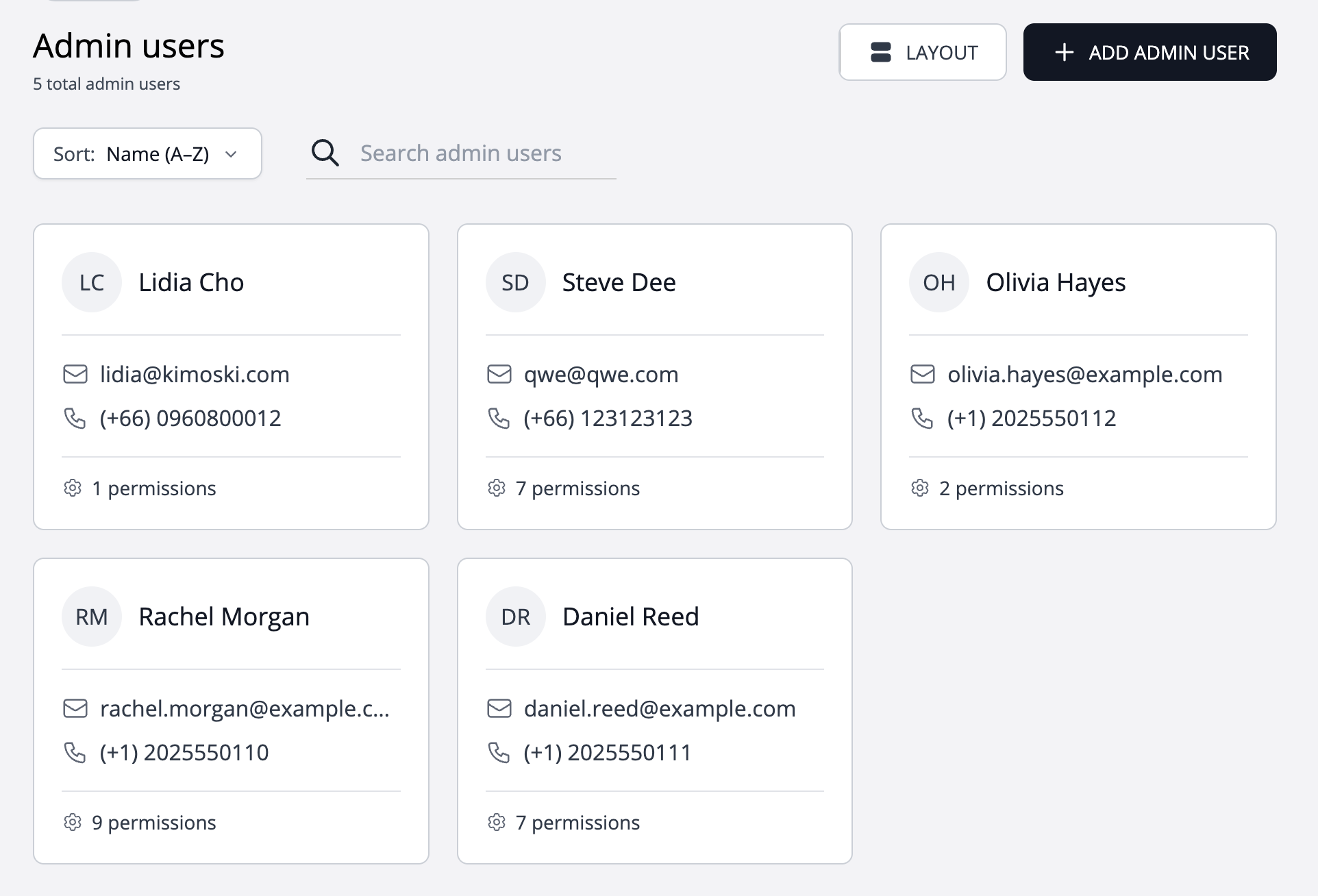
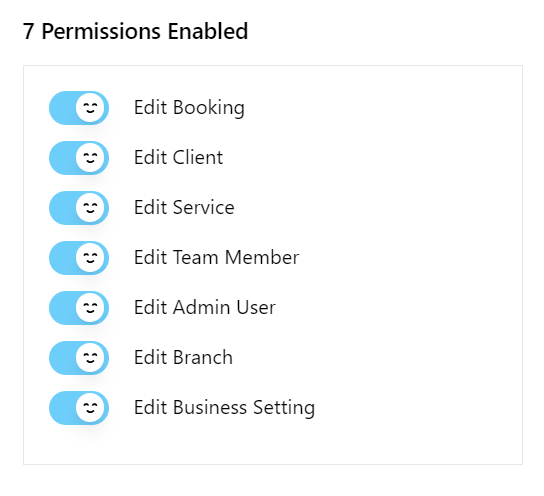
Admin Permissions
Assign different permissions to an unlimited number of admin accounts, allowing precise control and customization of admin permissions.
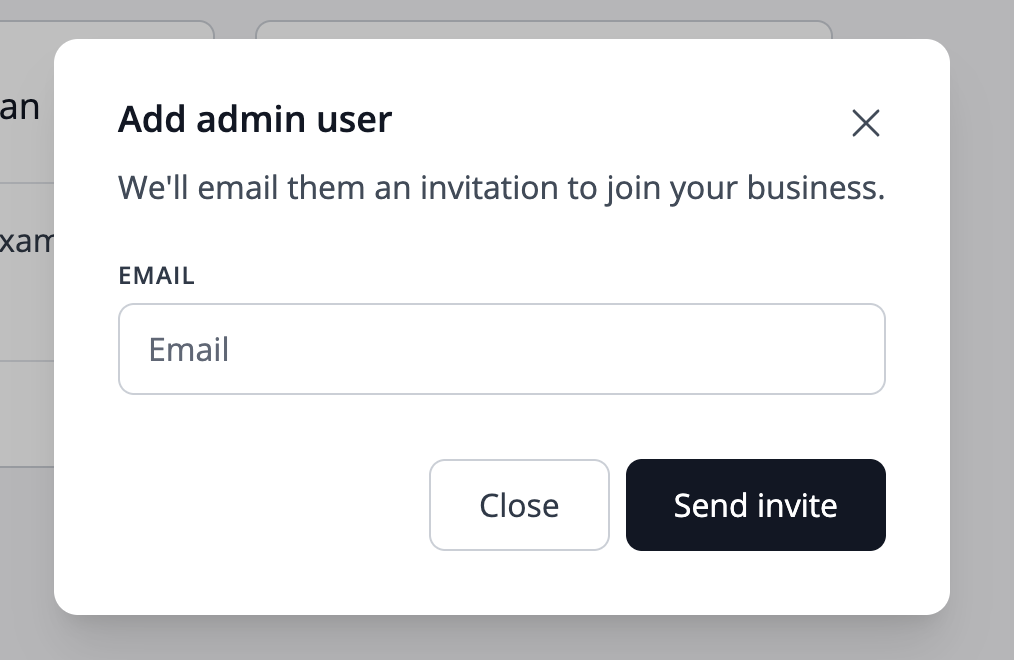
Invite an administrator by email
To add a new admin to your system, simply enter their email address and click Send Invite.
Give each administrator the access their work needs
The person who handles a booking does not always need to change services, rooms or business settings. Admin permissions let you separate these responsibilities. Start with the tasks a colleague needs to complete, then choose the corresponding permissions.
Separate providers from administrators
A team member is bookable for a service. An admin user manages the business through their account. Decide which colleagues need management access as well as a bookable profile.
Choose permissions by responsibility
Available editing permissions cover bookings, clients, team members, services, rooms, branches, admin users and business settings. Choose only the areas the colleague is responsible for; an editing permission should not be described as a guarantee that all other information is hidden.
Review access when roles change
Review admin access when someone joins, changes responsibilities or leaves. Keep account ownership and important settings under the control of the appropriate person rather than copying another admin’s permissions without checking.
Worked example
Plan access around a reception role
A receptionist may need to edit bookings and client details, while service pricing stays with the manager. The example below is a suggested responsibility split, not a predefined role or a promise of branch-level data isolation.
| Task | Permission to consider |
|---|---|
| Arrange appointments | Edit bookings |
| Maintain contact details | Edit clients |
| Change service prices | Edit services — manager responsibility in this example |
Illustrative setup, not a live booking or customer result. Adapt the names, times and prices to your business.
Before you share your booking page
- List the tasks each admin is responsible for.
- Distinguish bookable profiles from management accounts.
- Choose editing permissions deliberately.
- Review access after staffing or role changes.
Questions about this workflow
Does every staff member need admin access?
Only give management access to people who need to use those tools. A bookable team profile and an admin account serve different purposes.
Can I control who changes prices or business settings?
Service editing and business-setting editing are separate permissions. Assign them according to responsibility, and remember that the business owner has owner-level access.