Service booking and pricing management
Create bookable services, organize categories, and set durations, descriptions, and pricing options for the services your team offers.
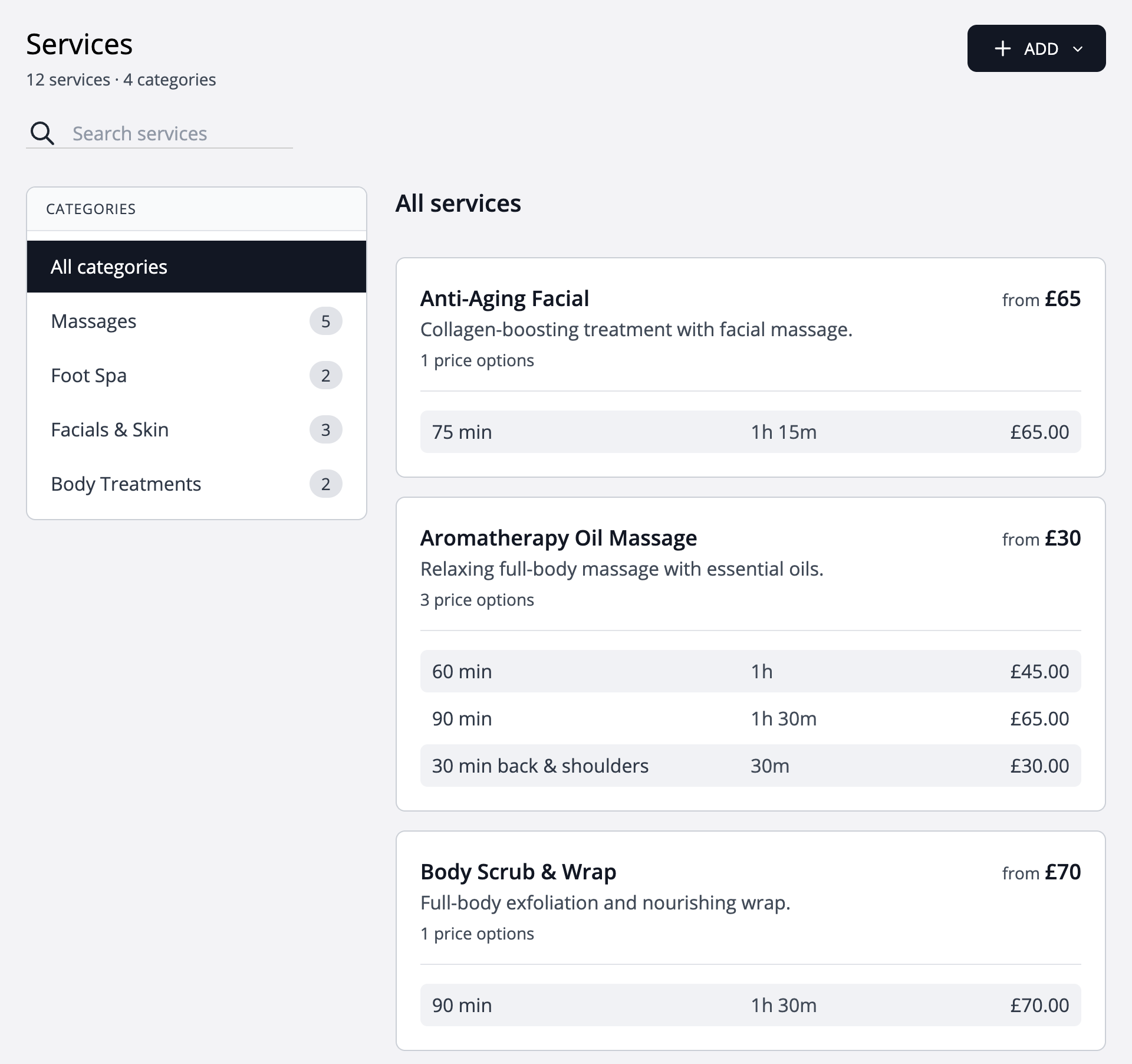
Manage service prices and booking options
View and manage all services and price options along with the prices in one place. Easily update and adjust pricing.
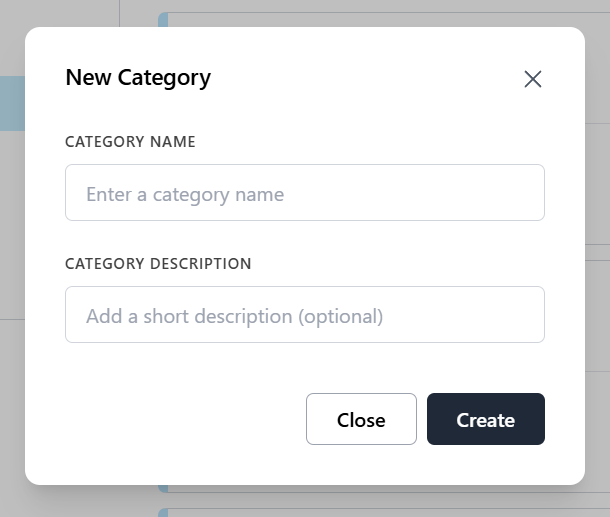
Organise your booking menu into service categories
Organize your services by adding categories that help group similar offerings. This makes it easier for admins and clients to navigate and select the services they need.
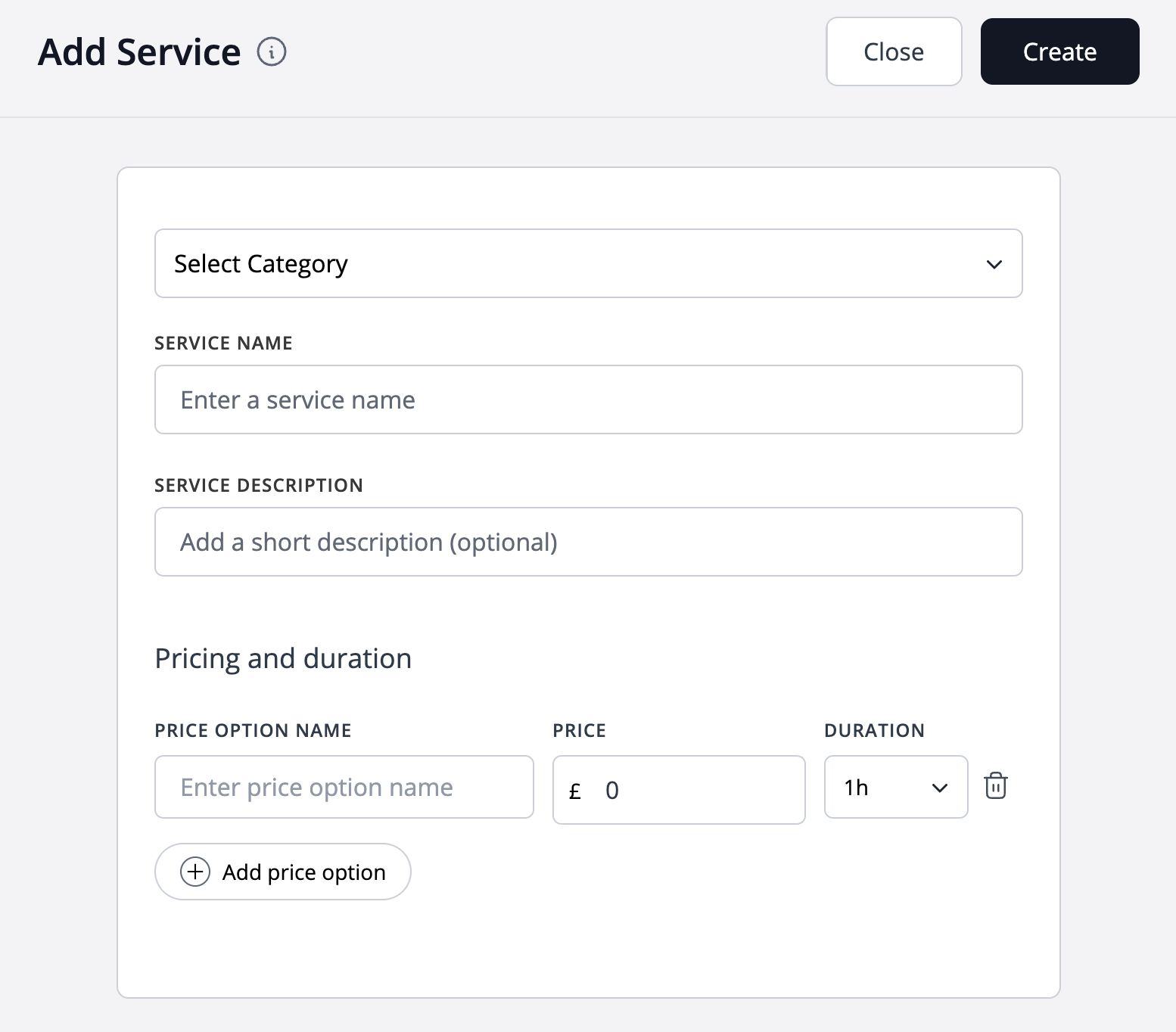
Set service names, prices and appointment durations
Add new service easily, in which you can customize service durations, pricing, and price option names to your exact preferences.
Build a service menu clients can book with confidence
A useful booking menu explains the visit before it reaches your calendar. Give each service a clear name, a realistic duration and a price that matches what you provide. Categories help clients find their way through a larger menu without needing to ask which option to choose.
Organise the menu around customer choices
Create categories such as hair, nails or consultations. Use service names that describe the appointment, then explain inclusions and when the customer should contact you first. Keep internal staff terminology out of client-facing names.
Set the time and price for each option
Separate a short appointment from an extended session with service options. A longer visit should reserve the time you actually need; a description alone does not change the appointment duration. Explain any work that needs a consultation or individual quote.
Connect the service to the right team
Assign services to the team members who offer them and keep their branch information current. When your menu changes, review the related assignments so clients see appropriate providers for the service they select.
Worked example
One salon, three different appointments
A salon gives a quick trim, a cut and finish, and a colour consultation their own options. Clients can compare the time involved, and the team can identify the purpose of the visit from the booking. The amounts below are example service prices in USD, not WebbyBooky subscription prices.
| Service | Duration | Example price |
|---|---|---|
| Quick trim | 20 minutes | $15 |
| Cut and finish | 45 minutes | $35 |
| Colour consultation | 30 minutes | $20 |
Illustrative setup, not a live booking or customer result. Adapt the names, times and prices to your business.
Before you share your booking page
- Use names a first-time client will understand.
- Check that each option has the intended price and duration.
- Review the providers assigned to each service.
- Explain inclusions, preparation and when a quote is needed.
Questions about this workflow
Should every variation be a separate service?
Use categories to group related work and options for variations in price or duration. Give substantially different appointments their own clear descriptions so clients can choose based on what they need.
How do I handle work that needs a quote?
Offer a consultation or ask the client to contact you before booking. Your team decides the scope, price and time; the booking system uses the service settings you provide.
Continue with a practical guide
How to set up online booking for team members and services
Set up your branch, add team members and services, assign who provides each service, and share your client booking page.
Read the guideChoosing deposits or full payment for online bookings
Compare deposit and full-payment booking workflows, explain what customers pay, and prepare clear collection instructions.
Read the guide