Team member scheduling and service management
Manage team member profiles, assign services and branches, and organize appointment schedules for your service team.
Manage staff profiles and bookable services
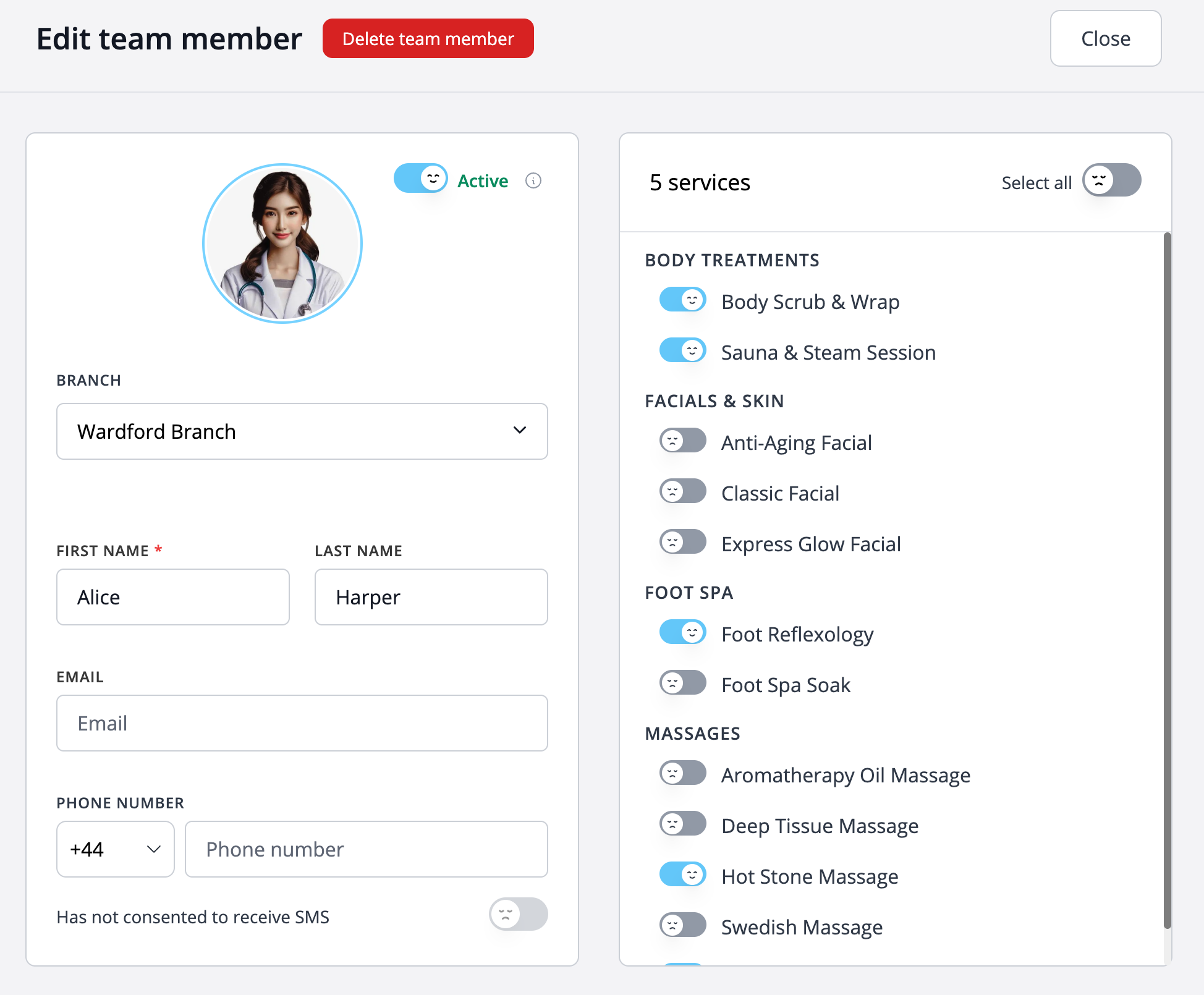
Team member profile show detailed information for each team member, including their assigned branch and the services they offer.
You can manage their status by setting them as active or inactive, active team members will be displayed in online client booking portal.
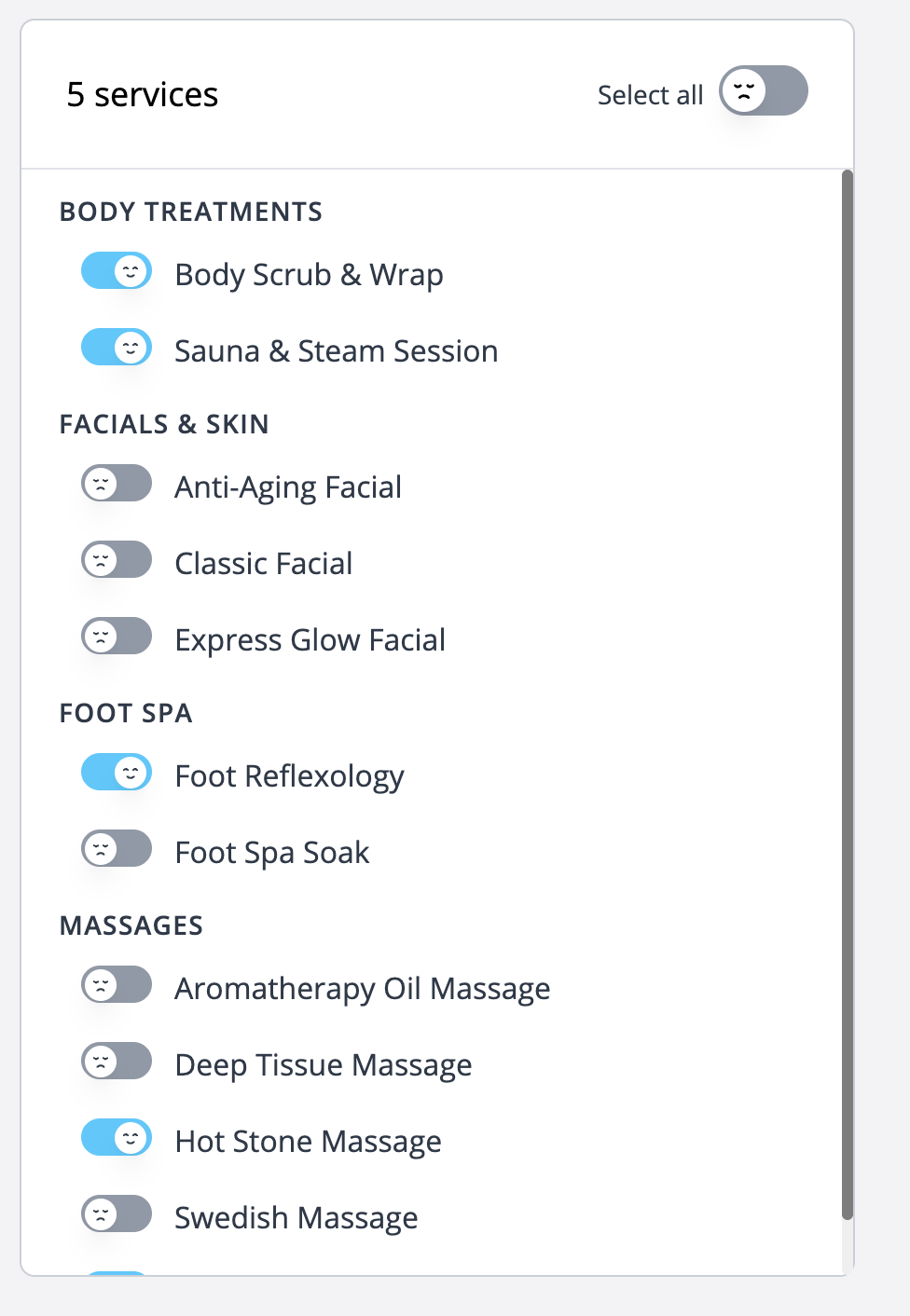
Assign services to the team members who provide them
Easily manage your team service offerings by assigning specific services to each member.
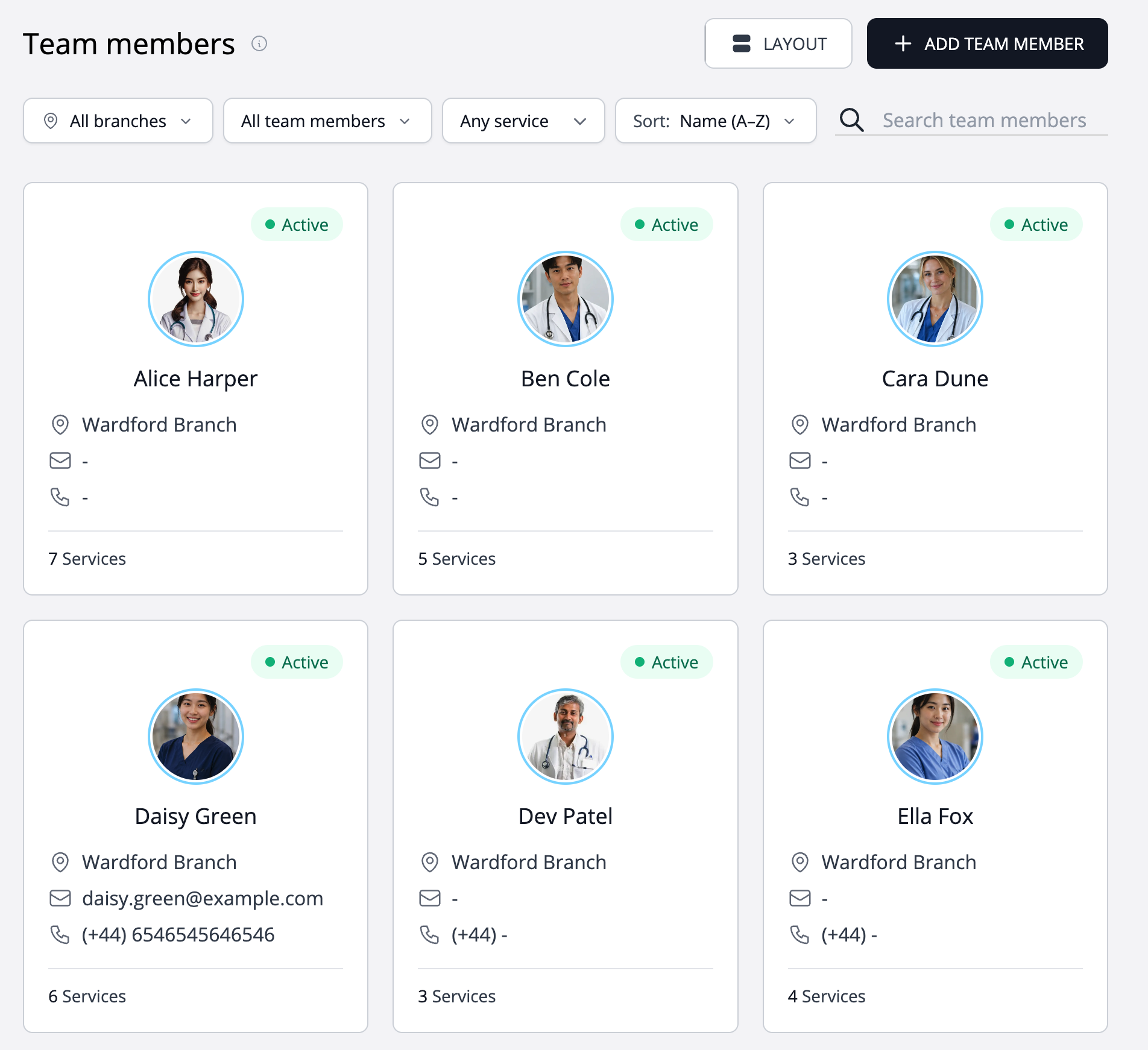
Modern grid layout
We have thoughtfully designed our interface with a modern grid layout to provide a visually appealing and functional user experience.
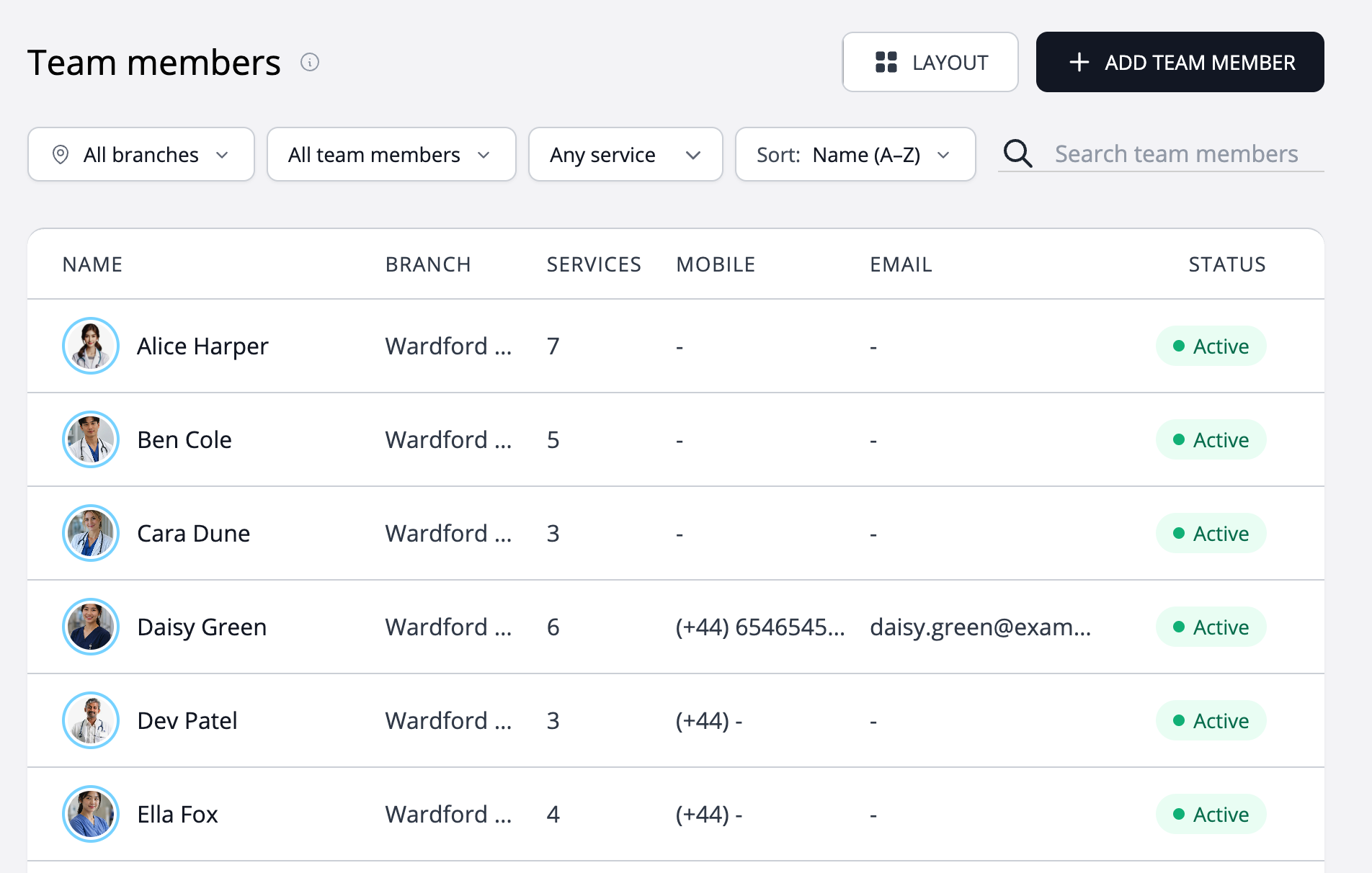
List layout
Our interface features a list layout, designed for clarity and ease of use.
Lets you glance through a lot of team members data easily.
Connect people, services and the working day
Team management starts with a simple question: who provides each service, and where? A clear profile and accurate assignments help customers choose a provider and give reception a reliable starting point when arranging an appointment.
Create a recognisable profile
Use the name clients know and assign the team member to the appropriate branch. Keep the profile active when the person should appear in the online booking portal, and review their status when your team changes.
Assign the services they actually offer
A provider can have a different service list from a colleague. Match the assignments to actual skills and responsibilities so the customer is choosing from suitable providers rather than a generic staff directory.
Keep booking arrangements current
Coordinate availability with the calendar and review branch and service changes together. When someone stops offering a service, update the assignment instead of relying on a note that customers may not see.
Worked example
Two stylists with different service menus
A salon assigns cuts and colour consultations to Alex, while Sam offers cuts and beard services. The profiles describe the actual choices available at that branch. These are sample assignments, not built-in roles.
| Provider | Assigned services |
|---|---|
| Alex | Cut; colour consultation |
| Sam | Cut; beard service |
Illustrative setup, not a live booking or customer result. Adapt the names, times and prices to your business.
Before you share your booking page
- Use accurate names and branch assignments.
- Keep active and inactive profiles up to date.
- Match services to the people who deliver them.
- Review the customer choices when staffing changes.
Questions about this workflow
Is a team member the same as an admin user?
A team member is a person customers can book for a service. An admin user accesses business management tools with assigned permissions. Configure each according to the work that person needs to do.
Can different providers offer different services?
Yes. Assign the relevant services to each profile. Review those assignments when you add a new service, change responsibilities or move staff between branches.
Continue with a practical guide
How to set up online booking for team members and services
Set up your branch, add team members and services, assign who provides each service, and share your client booking page.
Read the guideHow to add a booking link to your existing website
Connect your website to your WebbyBooky booking portal with clear links, useful descriptions and a straightforward client journey.
Read the guide